How to update Fairino Robot Software

How to update Fairino Robot Software

Step 1)
- Navigate to the Fairino documentation page here
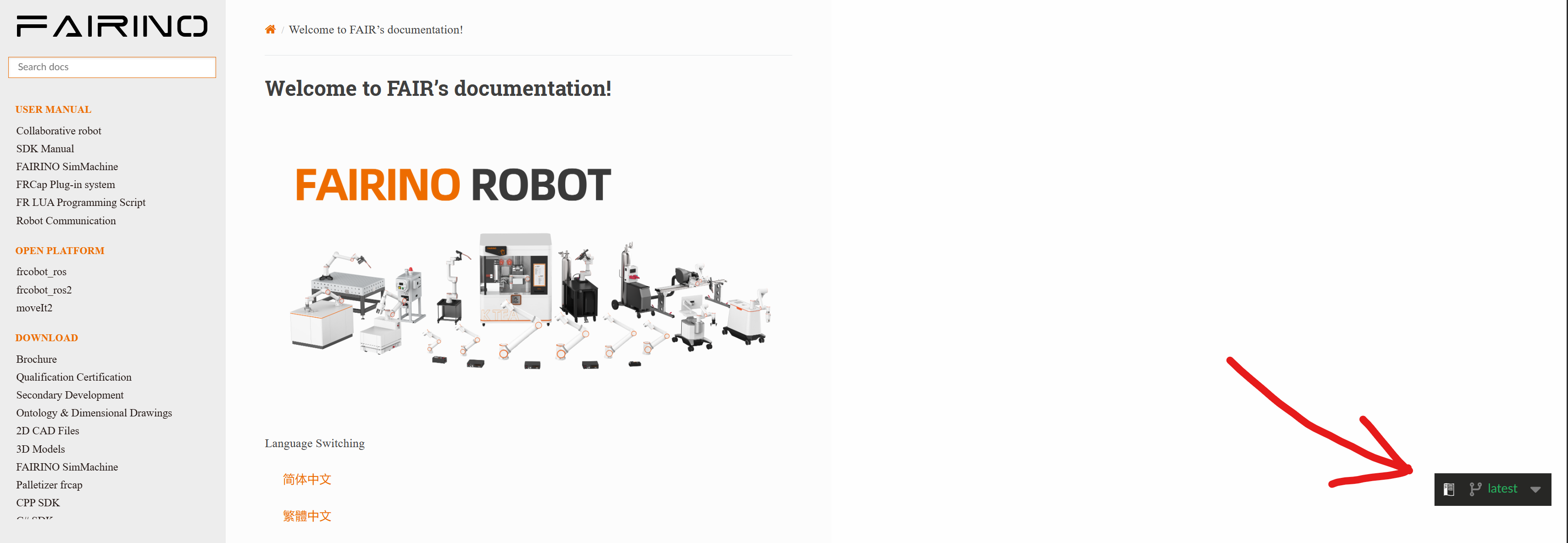
-  Use the version select button in the bottom right to select the target software version you wish to migrate to (please note the compatibility table below):


Current VersionMaximum Upgradable Version
<3.6.13.6.1
3.6.1 - 3.6.43.6.5
3.6.5 - 3.6.83.6.9
3.6.9 - 3.7.43.7.5
3.7.5 - 3.7.73.7.8
3.7.8 - 3.8.1
3.8.2
3.8.2 - 3.8.73.9.0
>= 3.9.0
No restrictions

Step 2)
- Navigate to the "Robot Software" tab on the left (Shown below)

- Select the software.zip file for your desired robot version. Download and unzip the files
- NOTE: Some version have both "LA" and "QX" versions. All United States Fairinos should use the "QX" release.


Step 3)
- Log into the robots WebApp (default IP address 192.168.58.2)
- Navigate to Auxiliary ->Tool App -> Software Upgrade 
- Note: Some older web versions may have different tab names (ie. "Application" instead of "Auxiliary")


Step 4)
- Select "upload file" and upload the software.tar file you just downloaded.
- Click "Upgrade" and wait for install to complete
- After upgrading, power cycle your control box and you will have successfully upgraded you Fairino Software!

NOTE: If you are using the SDK, you will need to install the corresponding SDK version for the new software version.


    • Related Articles

    • Unable to reach Web App after software upgrade

      Reestablishing WebApp Connection After Software Upgrade After trying to upgrade Robot Software, some users end up seeing this pop-up when trying to log back into the Web App (or an empty pop up window when trying to enable the robot in the WebApp). ...
    • Fairino FAQ

      Q: How do I connect my DH gripper to my Fairino? A: Follow the instructions linked here ...
    • Getting Started with the FAIRINO MoveIt2 Plugin

      Overview In this tutorial, we focus on the installation and setup of a basic MoveIt2 environment using the FR5 cobot model. By the end of this tutorial, you should have a basic understanding of MoveIt2, and how to launch a functional planning ...
    • Connecting an XJC Force/Torque Sensor to Fairino Cobot

      This article will cover the steps needed to connect your XJC force/torque sensor to the end of a Fairino Cobot arm Hardware required: - 1 XJC force sensor - 1 Fairino Cobot - 1 computer with ethernet connection to Control box/button box OR 1 teach ...
    • Fairino Does Not Enable

      What to do when you're Fairino is not Enabling: Check the following as each check may have a different set of steps to fix it: First, make sure you are able to: 1) Ping the robot ***If you can not ping the robot, refer to the article linked here*** ...