Setting Up Your End-of-Arm Payload

Setting Up Your End-of-Arm Payload

Configuration of the payload at your robot's end-of-arm is important for ensuring accurate force compensation when in drag mode as well as collision detections. Multiple payload configurations for different tools or end effectors can be stored, eliminating the need to manually reconfigure the payload settings every time the payload changes. The payload can be configured via manual input or automatic identification.

Manual Configuration

Manual configuration of the payload can be performed when the mass and centroid values are already known, or when approximations can be used for testing and development purposes.

Navigate to:

Initial → Base → Payload → End

Select the desired payload slot to edit from the dropdown menu.
Info
The load name of the configured payload can also be edited by selecting the Rename button (pencil and paper icon).


You can then enter in the mass and centroid data, and click the check mark to save the data.
Notes
X, Y, and Z coordinate values are based on the default TCP coordinate system (toolcoord0)
If you need exact values for the payload parameters, it is strongly recommended to use the Automatic Identification function instead.

Automatic Payload Identification

InfoYou can also watch Fairino's video tutorial on how to perform automatic payload calibration.
During automatic payload identification, the robot will perform various movements to calculate your payload's mass and centroid.

Navigate to:

Initial → Base → Payload → End

Then select the "Identification Motion" button, indicated by the arrow in the image below.
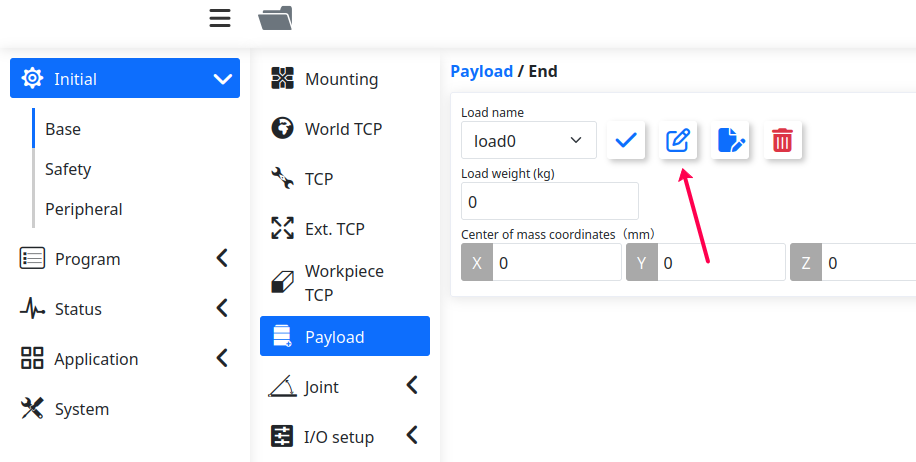

This will open the Automatic Identification settings used to calculate the payload mass and centroid.
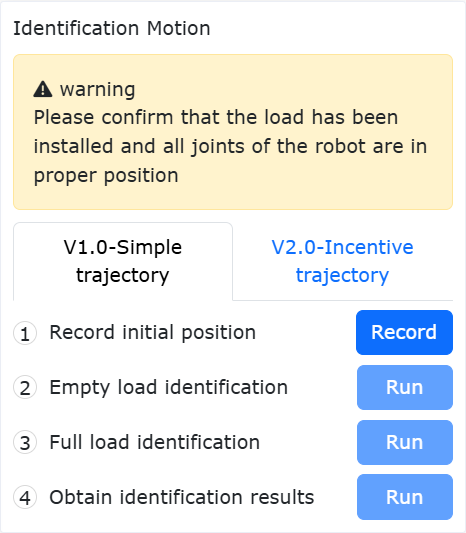


Using V1.0 Simple Trajectory

Step 1 — Prepare the Robot

Before starting:

  • Move the robot arm to a 90-degree position, as seen below.

  • Remove any payload attached to the robot.
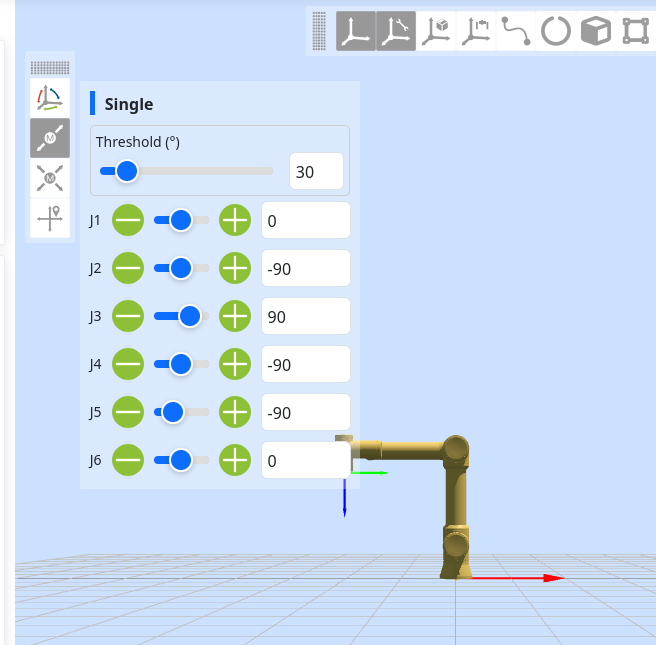

Step 2 — Record Initial Position

Select Record Initial Position and wait for the process to complete.

Step 3 — Empty Load Identification

Select Empty Load Identification while the robot has no payload attached, and wait for the identification process to complete.

Step 4 — Full Load Identification

Attach your full payload to the robot arm.
Then:

  1. Select Full Load Identification

  2. Wait for the process to complete

  3. Select Obtain

  4. Select Apply Results

Alert
WARNING: Incorrect payload configuration may result in the following error: [Error] Drag force anomaly; dragging failed — can be reset
If this error occurs, try the following:

Verify Robot Mounting Configuration

Navigate to:

Initial → Base → Mounting

Ensure the mounting configuration shown on this screen matches the robot’s actual physical installation.


Verify End-of-Arm Payload Configuration

Make sure the end-of-arm payload parameters are configured correctly, including:

  • Payload mass

  • Payload centroid

Update the Robot Software

Ensure the robot is running the latest software version.

For software update instructions, refer to our software update guide.


    • Related Articles

    • Setting Up a DH Robotics AG Gripper

      Setting up your DaHuan (DH) Gripper with the Fairino Robot To set up a DH gripper to communicate through the end of arm port, you will need: - 1 DH Gripper - 1 Fairino Robot - 1 8pin->5pin adapter Step1: Connect the cable from the gripper to the ...
    • Setting Collision Level

      Fairino Collision detection sensitivity The Fairino robotic arms are Cobots, meaning they are meant to work around people safely. A key to accomplishing this is the "Collision detection" setting. This article will cover how to set the collision level ...
    • Setting Up a DH Robotics Gripper - Alternative Approaches

      Overview This article outlines two alternative approaches to setting up a DH gripper when connection to the 5-pin port at the flange of a Fairino cobot is unavailable or not desired. Instead of using the default method for connecting the gripper to ...
    • Fairino FAQ

      Q: How do I connect my DH gripper to my Fairino? A: Follow the instructions linked here ...
    • Connecting an XJC Force/Torque Sensor to Fairino Cobot

      This article will cover the steps needed to connect your XJC force/torque sensor to the end of a Fairino Cobot arm Hardware required: - 1 XJC force sensor - 1 Fairino Cobot - 1 computer with ethernet connection to Control box/button box OR 1 teach ...